
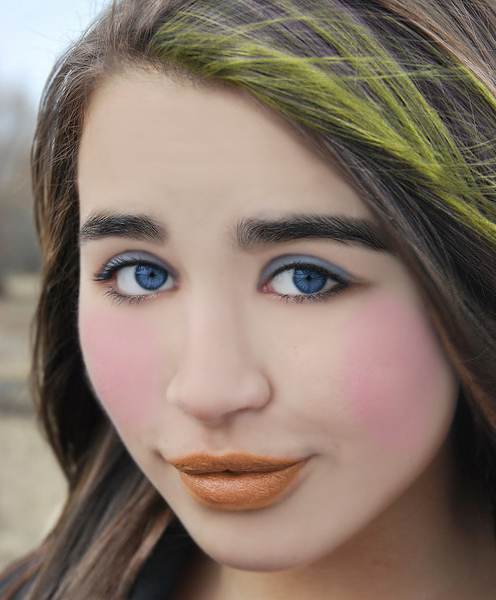
Here is a photo retouching tutorial in Photoshop for improving your Photoshop skills. To follow this tutorial you make the design more beautiful as like you want to make. Photo retouching is very useful technique of Photoshop.
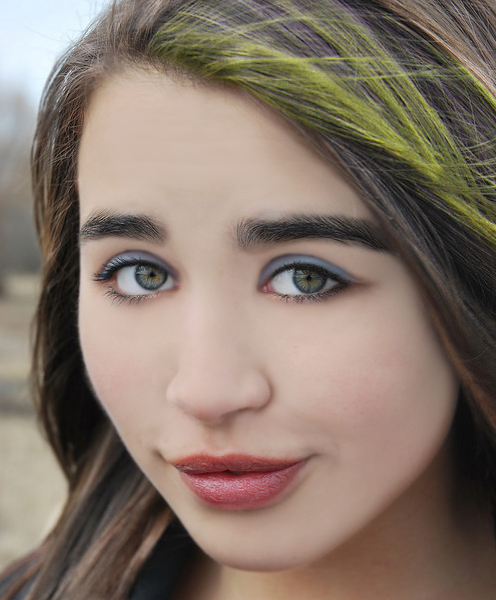
You can use it in your magazine projects, advertisements or any where you like. In this tutorial you can learn that how to put the makeup in a face to make the face beautiful and attractive. You can also share with us your sweet comments.
You may also like:
- How to Create an Ice Cream in Photoshop
- Create a Beautiful Sign Board in Photoshop
- Awesome Photo Retouching Tutorial in Photoshop
- Learn Photoshop: Photo Retouching Tutorial for Beginners
Tutorial details:
- Program: Adobe Photoshop CS5
- Difficulty: Intermediate
- Estimated Completion Time: 40 Mins
How to Put a Makeup in Photoshop – Final Preview
Tools and Resources
External Resource
Photoshop Tools
- Pen Tool
- Eraser Tool
- Brush Tool
- Elliptical Marquee Tool
- Polygonal Lasso Tool
Lets start to create a makeup tutorial in Photoshop.
Step 1
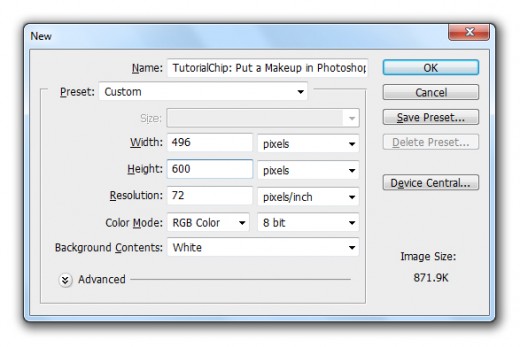
Create new document (Ctrl+N) with 496×600 of size.
Step 2
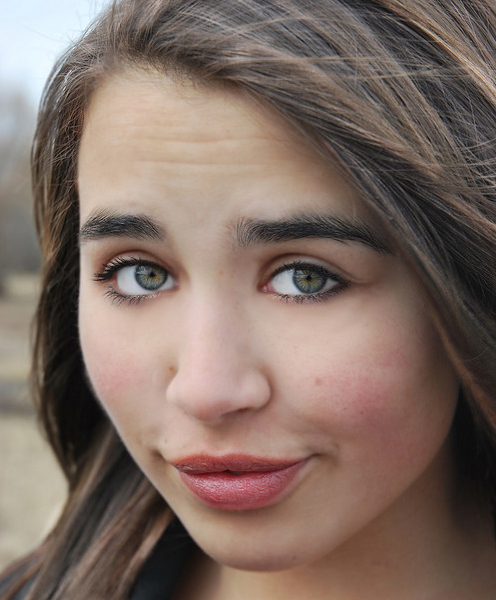
First of all add the Woman Face Image in adobe Photoshop.
Step 3
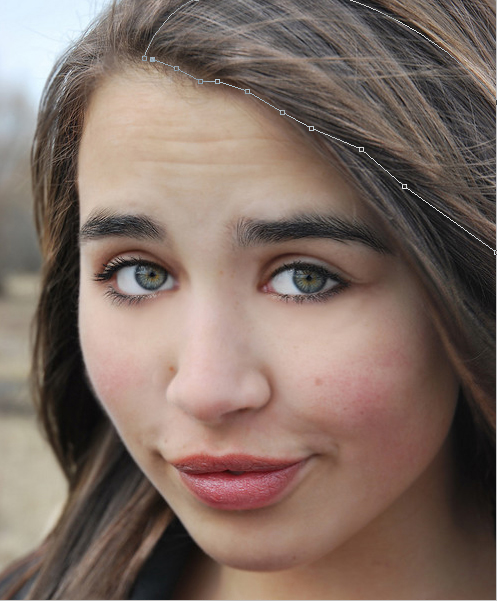
First we are going to change the color of some hair area, select Pen Tool from tool panel and create a path of hair area as like shown in below.
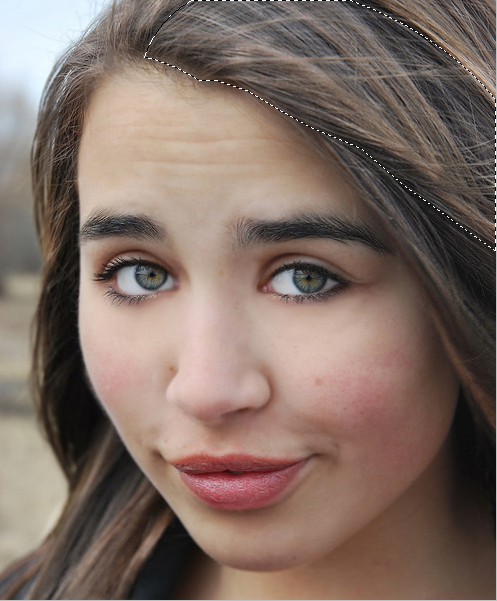
After creating path right click on path area and select (Make Selection) option to make selection.
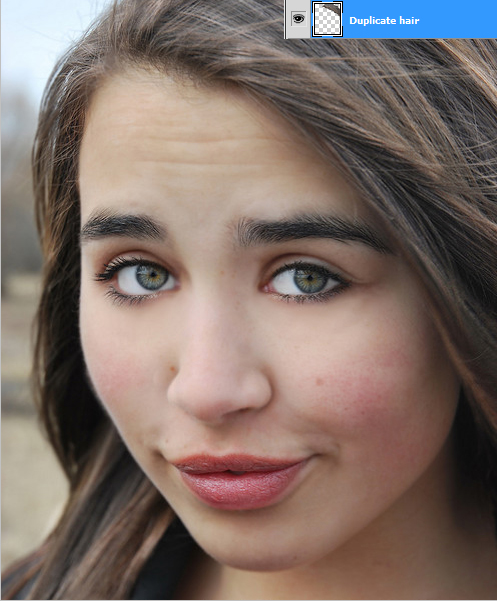
After creating selection press (Ctrl+J) to duplicate the selection area, name it layer Duplicate Hair.
Now we applying hue saturation on duplicate hair layer. Go to Image > Adjustment > Hue Saturation and set Hue (+38) and Saturation (+60).
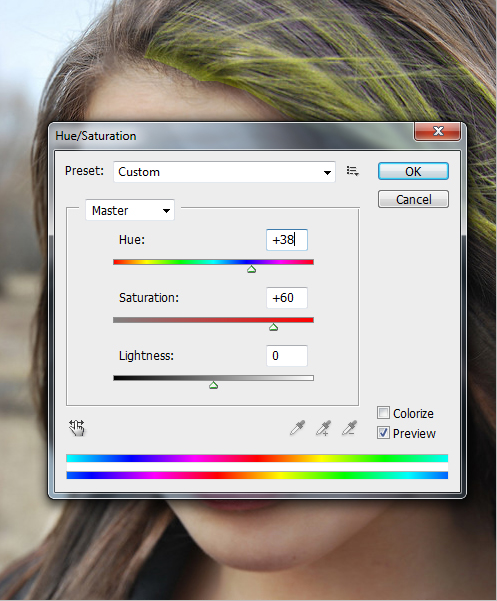
After image adjustment we get a nice effect on duplicate hair layer.
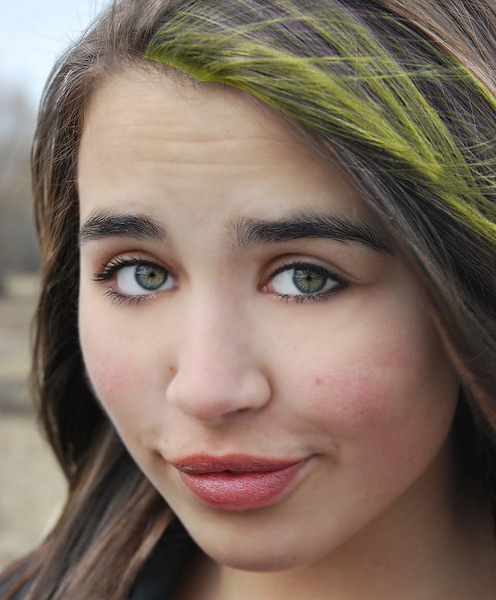
Step 4
Select the Eraser Tool from tool panel and erase the border area of duplicate hair layer as like in preview.
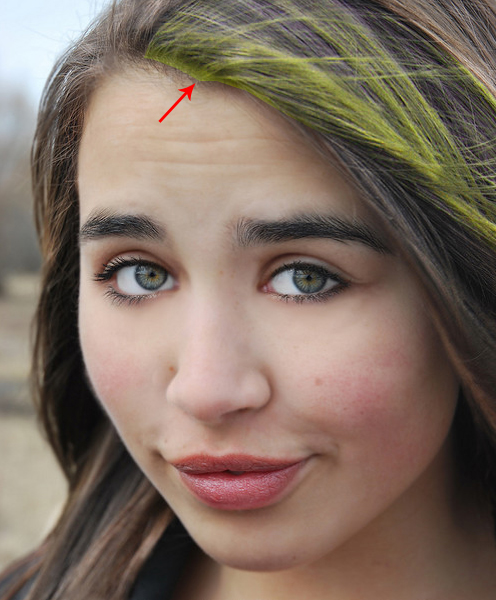
When we erase this area we get the real effect on this layer.
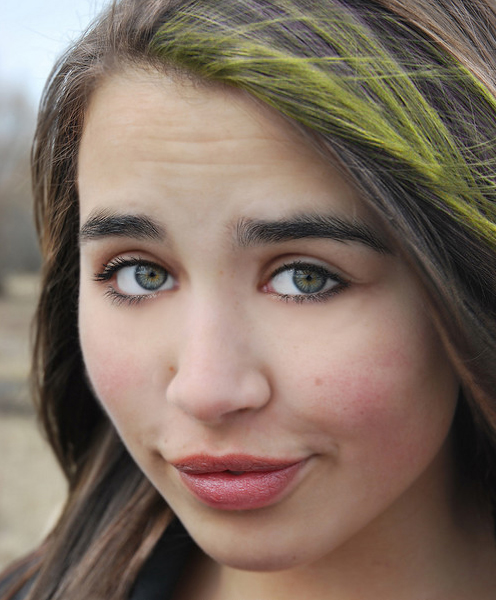
Step 5
Create a new layer, name it layer Face Makeup, select any soft brush and paint on the face area with this color #d0bbae.
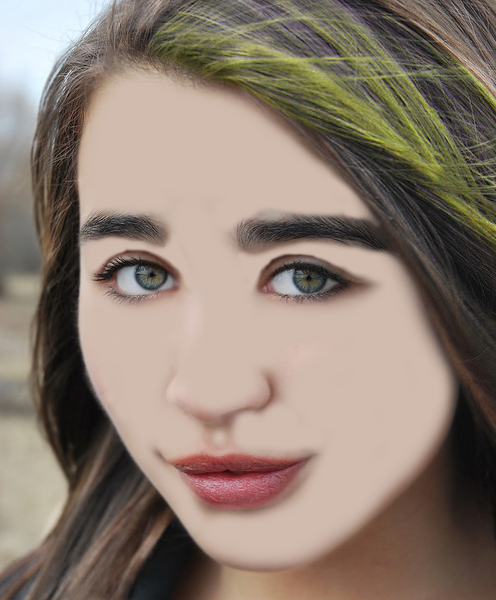
After paint the face area set the Opacity (50%) of this face makeup layer.

Step 6
Now create a new layer and again select the any soft brush and paint the several areas with this color #d0bbae, to make more effective face portion.
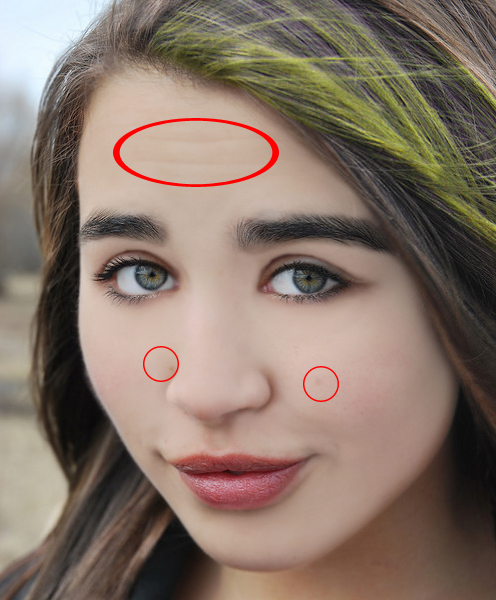
After paint these area set Opacity (70%) of this layer and get a nice result.
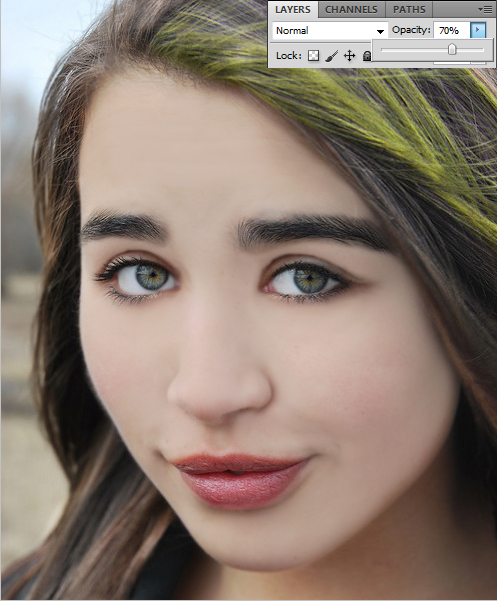
Step 7
Now we put the eyelashes, create a new layer select soft brush (10px) and paint the eyes upper area with this color #589edf.
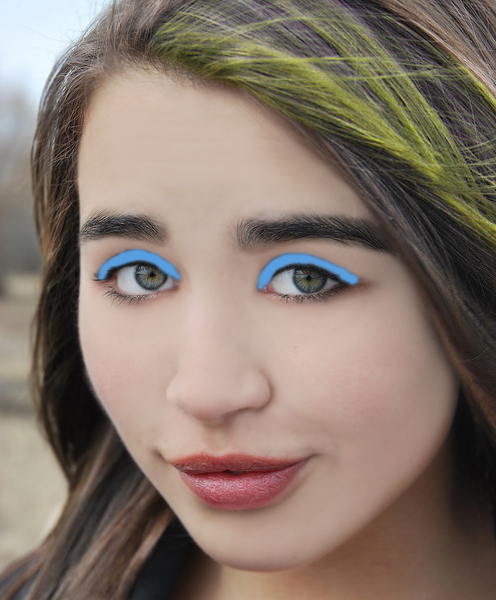
After paint this area down the Opacity (30%) of this layer.
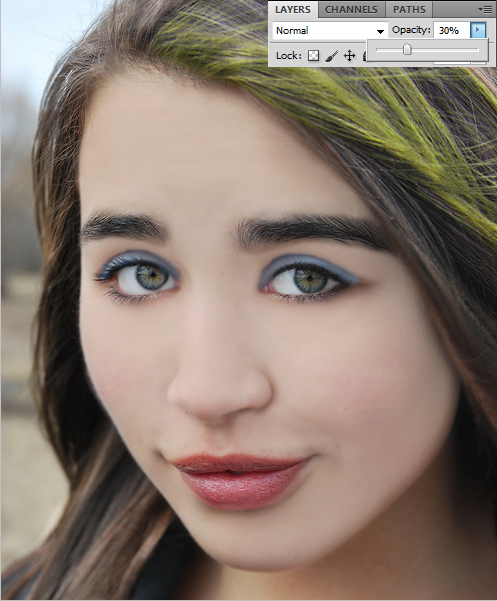
After down the opacity select Eraser Tool and erase the little bit upper and down side unneeded area.

thank you so much for putting this up, i have been searching for easy ways to airbrush like this.
Thanks,I just begin learning the photoshop,so.this tutorial is very useful to
me