
TutorialChip

TutorialChip

All Designs, Graphics, WordPress, Web Development Resources

Skip to content
Menu
  • Home
  • Tutorials
  • WordPress
    • Chip Life Free WP Theme
  • Articles
  • More >>
    • eCommerce
    • Design
    • Photoshop
    • Tools
    • Freebies
    • PHP
    • Tips
    • Inspiration
  • Contact
Search

Helpful Skype Logo Designing Tutorial Using Photoshop

  • by abie
  • Posted on July 12, 2011December 21, 2011

Step 5

Now we take duplicate two time of circle layer and select middle duplicate circle layer, clear layer style of this layer after clear layer style we get a white circle as shown in preview.

Duplicate Circle Layer

Now we applying Transform tool on this layer go to Edit > Transform or (Ctrl+T).

Applying Transform Tool

Now we press Shift+Alt and minimize this white circle layer as like in preview.

Minimize White Circle Layer

After this procedure we go in layer panel and Fill down 100% to 0% then we get a again blue and white circle as shown in preview.

Fill Down 100% to 0%

Ok, now we are applying layer style in this layer. Go to Layer > Layer Style > Blending Options and apply stroke.

Stroke
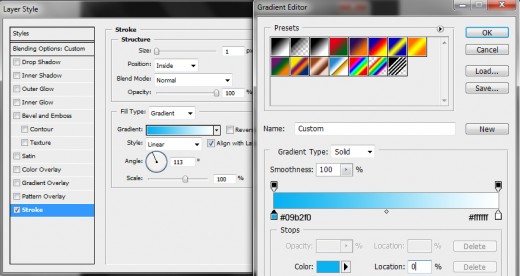
Applying Stroke

After applying Stroke we get a new circle as show in the preview.

After Applying Stroke

 Step 6

Now we select the second duplicate circle layer and clear layer style from this layer then we once again on white circle as shown in preview below.

Clear Layer Style

Now we applying Transform tool on this layer as like in step 5 and minimize this circle from the second circle as like in preview below.

Applying Transform Tool

Now we go to layer panel and Fill down again 100% to 0%.

Fill Down

We applying again Gradient Overlay on this layer.

Gradient Overlay
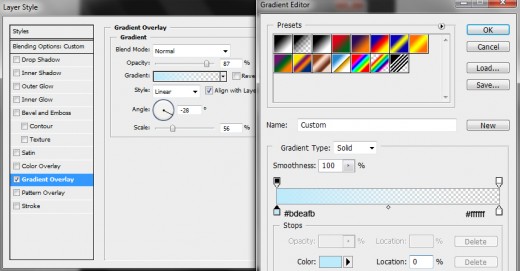
Gradient Overlay

After applying Gradient Overlay we have get third circle as shown in preview.

Applying Gradient Overlay

 Step 7

In this step we take a new layer, select Elliptical Marquee Tool and draw a circle as like in preview.

Elliptical Marquee Tool

After draw a circle we fill this circle with #3bbcea color and we down Opacity of this circle layer till 45%.

Fill Color

Now we Erase the left part of circle with Eraser Tool or Polygonal Lasso Tool. After erasing this part then we get a new effect as shown in preview.

Erase The Circle

Share this:

  • Facebook
  • Twitter
  • More
  • Pinterest
  • Tumblr
Pages: 1 2 3
Posted in PhotoshopTagged logo, photoshop drawing effects, skype, tutorial

Author: abie

I am a blogger, web designer, graphic designer, and overall art lover! View all posts by abie

Post navigation

Prev Beautiful USB Flash Drive: PSD File
Next Exclusive Electrical Battery Icon PSD File

Recent Posts

  • Honest Update Dates for WordPress Guides: Published, Modified and Last Verified
    October 5, 2026
  • How to Optimize Website Images for Search and Accessibility
    October 1, 2026
  • Understanding Modern AI-Powered Photo Editing
    September 29, 2026
  • AI Image Generation: How Text Becomes Visual Content
    September 28, 2026
  • Web Development After AI
    Web Development After AI: What the Next 5 Years Could Look Like
    September 28, 2026
  • Free Browser Tools That Replaced My Paid Developer & Creator Toolkit
    September 26, 2026
  • Illustration Trends in 2026: Top Styles, Techniques & Ideas
    September 23, 2026
  • How 3D Visualization Helps You Make Better Design Decisions
    September 21, 2026
  • Rethinking Discoverability in the AI Era: From SEO to GEO and AEO
    September 19, 2026
  • How AI is Changing Video Editing and Digital Image Creation
    September 17, 2026

  • About
  • Contact
  • Write For Us
Copyright @2010-2026 – TutorialChip
Press Enter To Begin Your Search
×